AI That Understands Video Content
In the May 7, 2026 update, we introduced a large-scale AI (VLLM) that understands both video and language to video processing. Rather than relying only on voice transcription, it understands the video content itself and generates procedures that follow the context. By interpreting the meaning of actions from objects in the video (parts, tools, machinery) and human movements (steps, gestures, operations), it can split and summarize what's happening even in videos without narration.
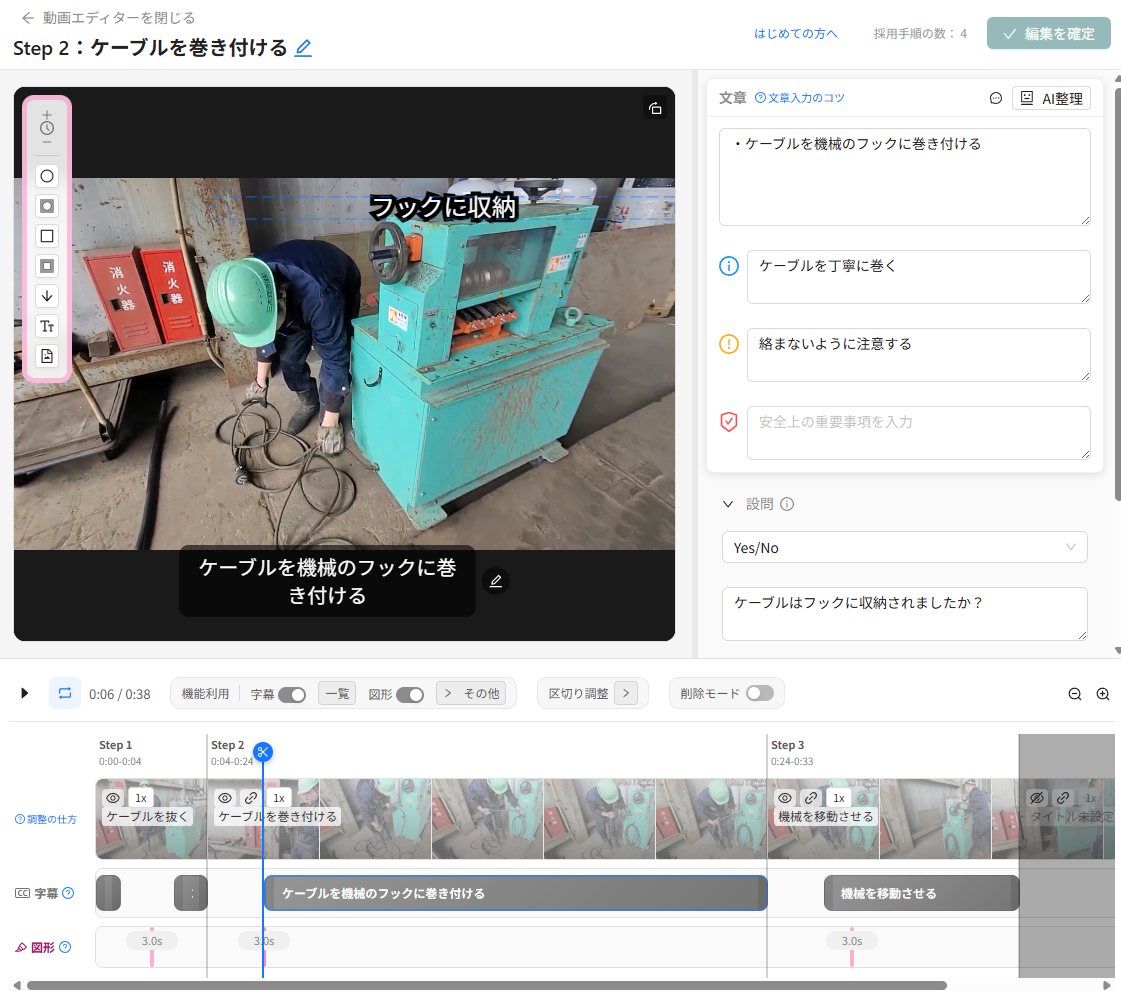
Create Two Types of Captions
- Speech transcription captions. Since transcription considers the context of the entire video, garbled captions from mishearing are significantly reduced.
- Action description captions. It auto-generates captions that explain work content, including sections without speech.
Auto-Insert Annotations and Questions
AI judges key areas from the video and auto-positions text annotations with display duration on top of the video. Verification questions are inserted at the same time.
Pass Site Premises to AI
- Premises that apply only to that video (target equipment, purpose, tools used, etc.) can be entered in the video description at analysis time and will be reflected in the analysis.
- Common premises like industry or company jargon that come up each time can be registered once in the terminology list, saving you from re-entering them each time, and they'll be automatically reflected in the analysis.
Suggest Work Improvements
For analyzed video, you can generate work improvement suggestions. Classifications include six types: eliminate, combine, reorder, simplify (ECRS), plus safety and quality. Suggestions are for viewing only and don't automatically apply to the procedure.
Run this suggestion from "Quick Analysis" (Pro plan or higher). Previously it was in Step 1 of time analysis, but we made it independent because you can use it even without a procedure. Quick Analysis surfaces improvement hints and dangerous spots with timestamps.
Constraints and Notes
- Dive does not retrain its AI model for each customer company. By providing site premises, terminology list, and video description template before analysis, we tune it to your terminology and writing style.
- We do not retrain or inspect customer data internally.
Four Fields That Make Up One Step
Dive procedures always consist of the same four fields. AI generates initial values for all four based on the video, and the creator just supplements them while replaying the video in the editor—tacit knowledge becomes structured text.
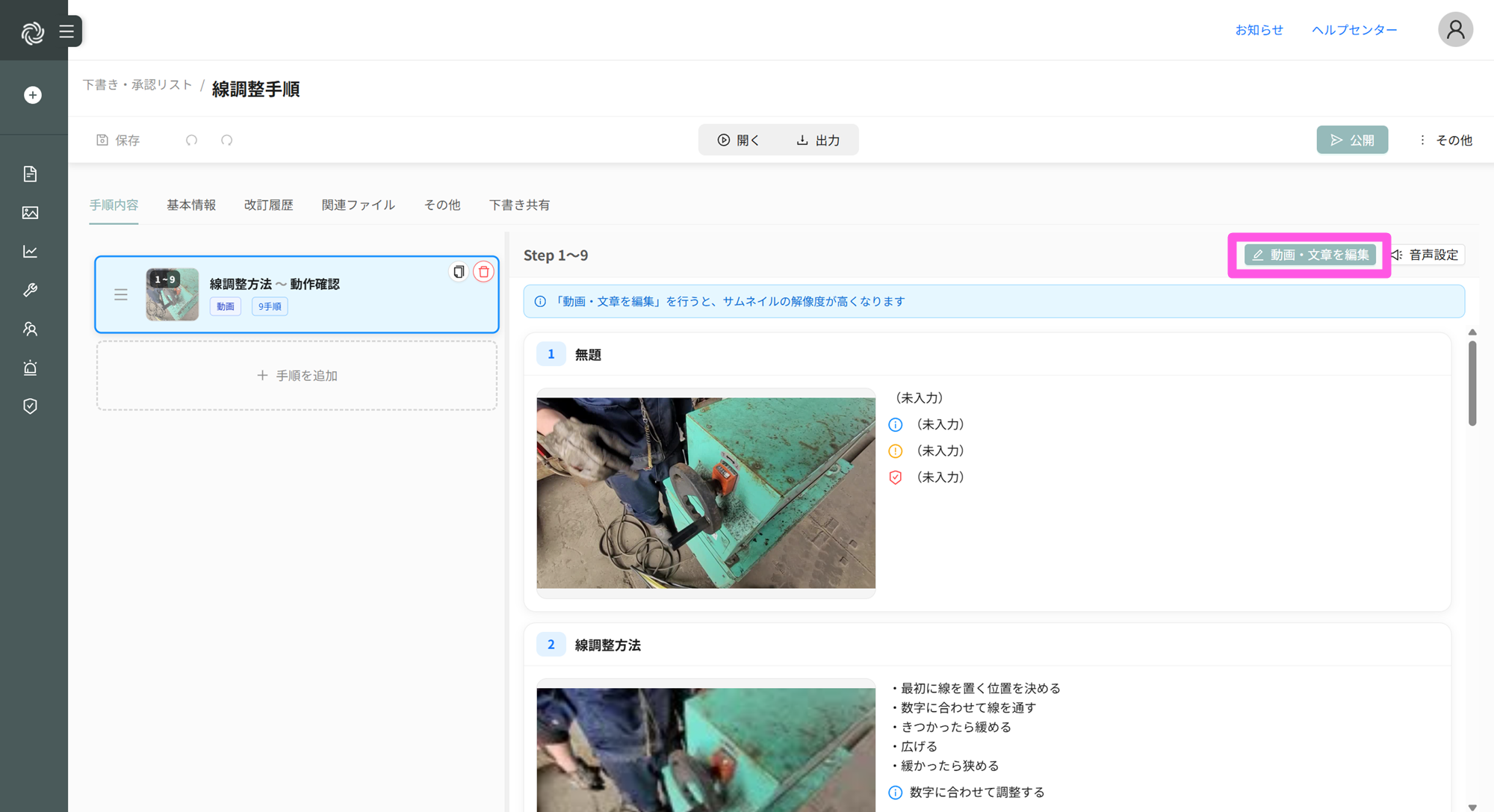
| Field | What to Write | Color on Screen |
|---|---|---|
| What to do as a task (main text) | What to do. Work content, operations, the step itself. | - |
| Tips | How to do it well | Gray (neutral supplementary info) |
| Quality warnings | What causes failure | Blue |
| Safety-critical items | What's dangerous | Red |
Procedure Header Fields (Document Number, Materials Used, Standard Time)
Separate from the four fields in one step, the procedure itself has the following three fields. We matched items that existed in customer standard work docs but were missing from Dive, and they're available on all plans. Each is retained per version, so when you output an old version, you get that version's values.
- Document Number: Customer management number. Search is exact match only (so partial part number searches don't pull different parts). Alerts you if a procedure with the same number exists.
- Materials Used: Category, name, part number, quantity. The category vocabulary can be edited per team in the dictionary and imported from industry presets. You can search procedures by name and part number. AI can extract from video or materials too, and when inserting materials into existing procedures, it appends instead of replacing (duplicates judged by name + part number).
- Standard Time: Baseline value per step. Total appears on the basic info. Video length is used only as an initial value proposal and doesn't automatically change when you swap video (since re-filming every time would invalidate time as a labor basis). When creating a procedure from a reference video assembled during time analysis, each step's initial value is auto-filled.
All three are included in standard PDF, Word, and Excel output and transfer to your custom format. You can toggle each field on/off with output options.
Distinguishing Quality Warnings from Safety-Critical Items
The distinction is whether there's risk of injury. Items with injury risk are safety-critical items; quality, property, or process issues without injury risk are quality warnings. When unsure, issues without injury risk default to quality warnings.
Terminology and Output
- The official names on screen are "Tips," "Quality warnings," "Safety-critical items," and "Questions"—four terms unified across all screens.
- In PowerPoint export, one step becomes one slide, with step number, title, work content, tips, quality warnings, safety-critical items, questions, and a thumbnail image arranged on it (PowerPoint export is Pro plan or higher).
AI Editing and Importing Existing Materials
AI shoulder-loads editing work: auto-create questions, auto-generate captions (even without speech), auto-cut redundant scenes, auto-insert annotations. You can also specify playback speed per step to fast-forward through redundant scenes and slow down parts you want to emphasize.
AI Polish (Text Proofreading by Generative AI)
Based on text entered in a step's "what to do," it polishes the step title, tips, quality warnings, and safety-critical items. Polish has four modes:
- Change tone only
- Rewrite entire text (reorganize title, text, tips, quality warnings, and safety-critical items based on the work-to-do)
- Summarize text only (bullet points)
- Shorten title (20 characters or less)
Choose the tone for generated text from command (plain/command form; procedure standard), polite (polite language; for new-hire training or audit submission), or conversational (soft tone; for training). Subtitle tone can be specified separately from main text. From the procedure basic info, you can use [Generate Title and Overview with AI] to generate a title and overview based on all the procedure's text. AI Polish is a Pro plan or higher feature.
Extract Safety and Quality Notes from Existing Manuals and Apply to Each Step
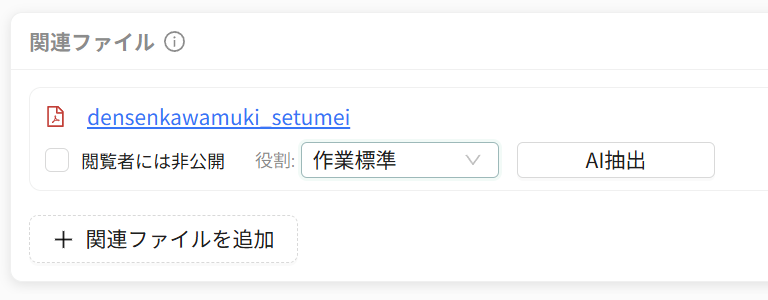
When you attach existing manuals like work standards, drawings, checklists, or reference materials as "related files" to a procedure, AI extracts "what to do," "tips," "quality warnings," and "safety-critical items" and distributes them to the relevant steps to apply them.
- Extraction results can be reviewed as candidates per step before applying, and you can change the target step or category and choose to adopt or discard them.
- You can set related files to "not visible to viewers," so internal materials stay locked to management only.
Create Procedures from PDF and Office Files
From Excel (.xlsx/.xlsm/.xls), Word (.docx/.doc), PowerPoint (.pptx/.ppt), OpenDocument, or PDF, AI auto-generates title, overview, and steps (including questions) to create a procedure. Items you can choose at creation are as follows:
| Setting | Options |
|---|---|
| Main text mode | Reformat / Transfer as-is |
| How to split steps | By content (make individual rows or bullets within a page separate steps) / By page (1 page = 1 step) |
| Tone | Command / Polite / Conversational / Follow creation guidelines |
| Questions | Create / Don't create |
| Continue when unexpected | Attach / Don't attach |
| How to convert Excel etc. to PDF | 1 sheet = 1 page / Width of 1 page / Follow print settings |
SOP Creation Guidelines (Enterprise Plan)
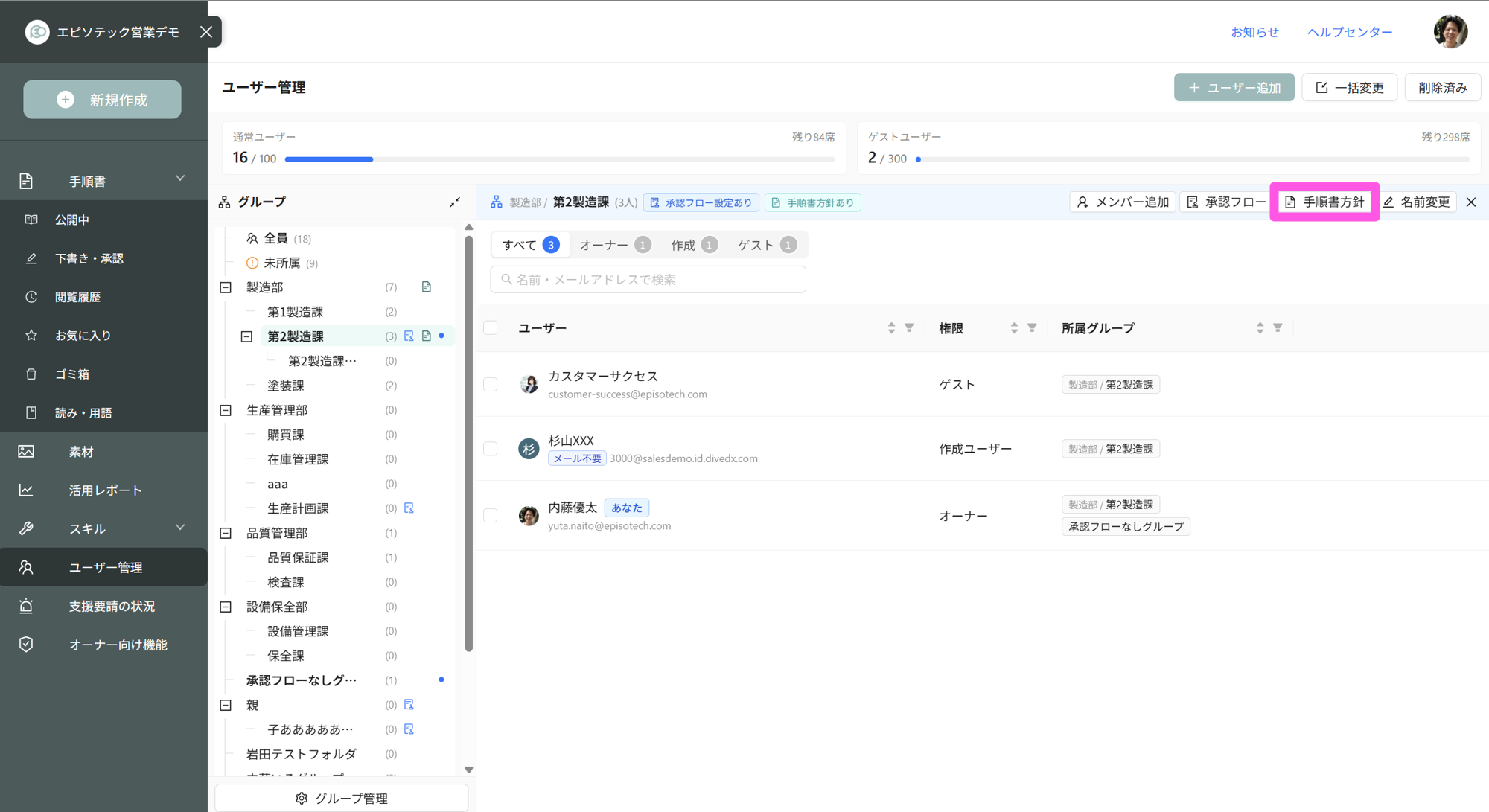
At the group level, you can define "SOP Creation Guidelines" (phrasing, writing style, guidelines and prohibitions, standard phrases). When you choose [Follow creation guidelines] in AI Polish text style, AI adjusts the procedure to follow your guidelines in phrasing and granularity.
- When you register a sample procedure or manual file, AI auto-generates a guidelines draft (phrasing, guidelines and prohibitions, standard phrases).
- With [Check Guidelines], you can have AI verify whether the procedure you're editing follows your organization's SOP creation guidelines.
Constraints and Notes
- AI Polish (text proofreading) is Pro plan or higher; SOP Creation Guidelines is Enterprise plan only.
- Precisely matching the reference procedure's divisions to a video is a beta feature.
- We do not retrain or inspect customer data internally.
- Episotech has also obtained a patent for manually splitting steps (Patent No. 7546989). Auto-split from video is Patent No. 7716145.
Terminology List and Dictionaries
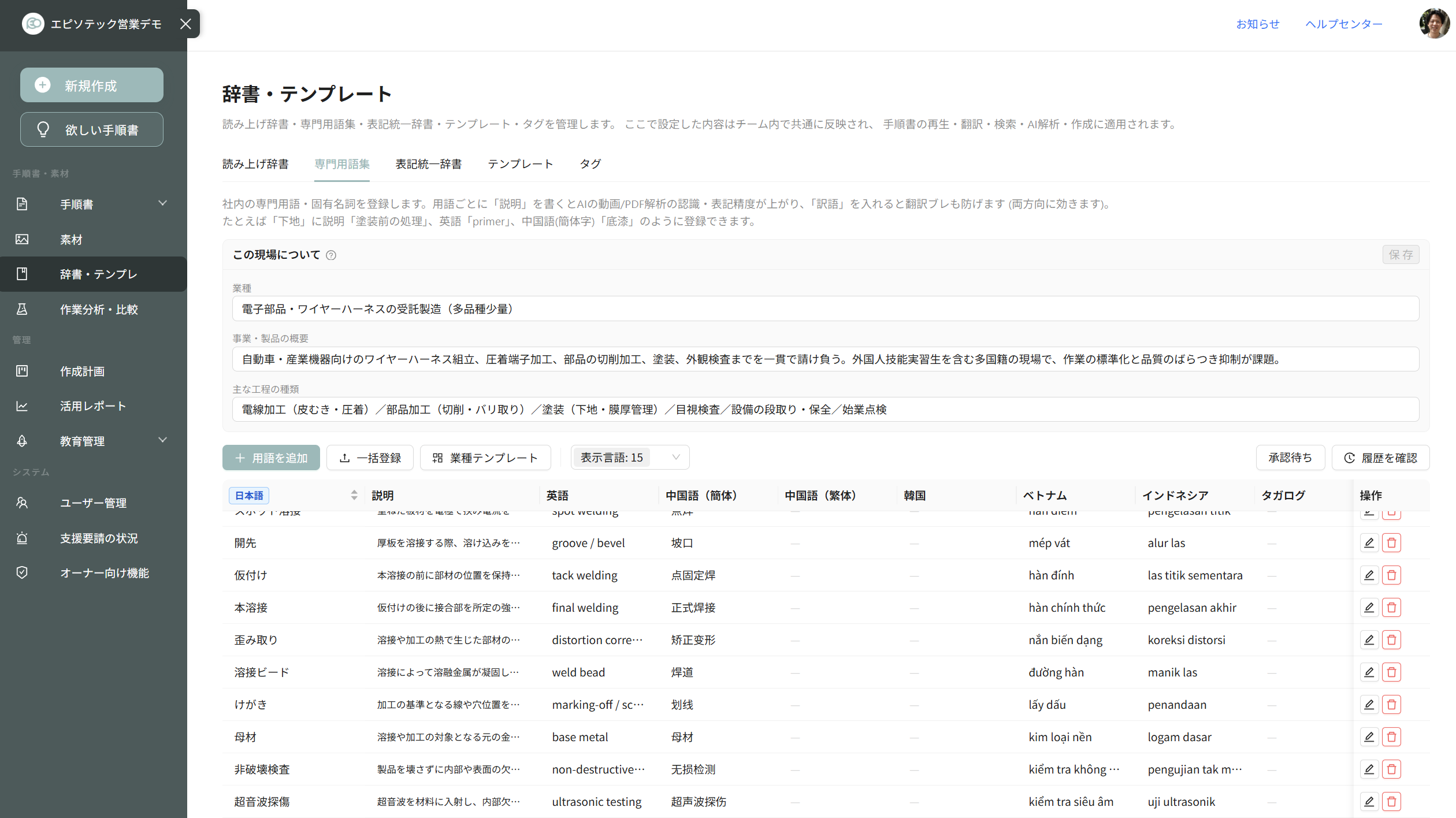
Tools to align AI-generated text with your company's terminology and style. [Dictionaries / Templates] has five tabs: pronunciation dictionary, terminology list, style dictionary, templates, and tags.
Three Dictionaries
| Dictionary | What You Can Do | Plan |
|---|---|---|
| Terminology List | Register company terminology and official spelling and translations; that spelling is prioritized at AI analysis time, and registered translations per language are prioritized in auto-translate at viewing time. | Core plan or higher |
| Style Dictionary | Register rules like "replace motor with motor"; they auto-apply in final text from AI analysis and can be applied all at once via button in the procedure edit screen. | Pro plan or higher |
| Pronunciation Dictionary | When voice playback mispronounces kanji, units, or proper nouns, you can specify the pronunciation with ruby text. | - |
Registration and Operations
- Start the terminology list by importing from industry templates: manufacturing, care, construction, food, logistics, retail, office.
- Dictionaries can be bulk-registered from Excel or CSV, and before import you see a diff preview of additions, updates, skips, and errors.
- Once you register something in the terminology list, you don't need to re-enter company terms for every video.
- Cells with blank translations can be bulk-filled with machine translation via [Translate blank cells]. Target can be the displayed language, all languages, or selected languages; results go into the table being edited so you can review before saving (team administrator or higher).
Permissions and Approval
Direct dictionary editing, bulk save, and proposal approval are done by owner and team administrator by default. Content registered by a group administrator or below is treated as a "proposal," and takes effect when owner or team administrator approves.
You can change this scope. For pronunciation dictionary and terminology list respectively, you can set who can submit proposals and who can approve and directly edit, from "owner only" to "viewer or higher." If you permit direct editing up to creation users, you can operate without approval (the style dictionary uses the pronunciation dictionary setting).
Structured Video Procedures (Video, Text, and Questions)
Dive procedures are structured with video split by step combined with text and questions. Text supplements what video alone can't convey—decision criteria and tips. Questions verify "is this right?" Structured video, text, and questions differ from video manuals that just show continuous footage.
The company website cites in-house research showing that even on manufacturing floors that adopted video manuals, 87% answered "we end up asking a coworker" anyway. The goal of structuring by video, text, and questions is to cut this "end up asking" down.
Questions (Verification Points)
Questions are a mechanism to verify "is this right?" on the spot. There's no score or pass/fail per-step question; until answered (or until the correct answer is reached, if set), you can't proceed. Two settings—question type (field check / knowledge test) and "continue when unexpected"—switch how it works three ways:
- Field check (default) — Worker verifies their own work on site. If not right, can't proceed. It's point-and-call, digitized.
- Inspection sheet / checklist — Work doesn't stop when unexpected, but records it as "abnormal." Use for checklist operations.
- Knowledge test — Tests memory. Choose when using for training or proficiency checks.
A passing threshold and scoring system is handled by training (course) verification tests, not per-step questions.
- You can place a question per step. Types are "Yes/No selection," "single choice," "multiple choice," "free text," and "free number"—five types.
- If you set a correct answer on the choices, you can require viewers to get it right before proceeding to the next step.
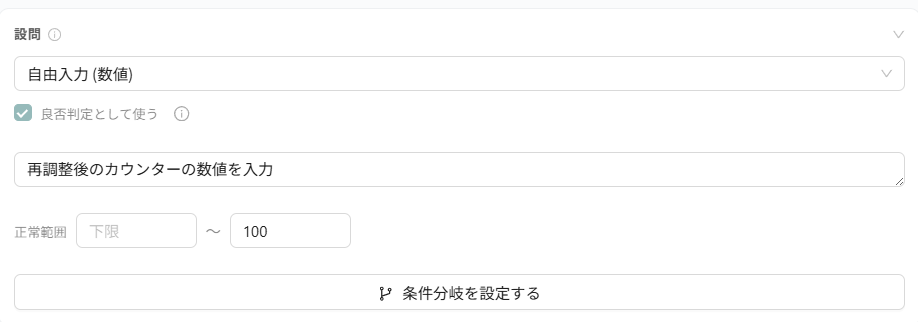
- For number entry, you can set a "correct range" (value must match to proceed) and "normal range" (for inspection; value outside it logs as abnormal) with lower and upper limits. One-sided limits are also allowed.
- Steps have a "Require photo submission" setting to have workers submit a photo as their answer.
- When letting AI create questions, you can choose the question type: "field check" or "knowledge test." The default "field check" creates multiple-choice questions with only options that can actually occur in that process—no distractor options. (Questions for workers to verify their work on site. Point-and-call, digitized.) "Knowledge test" mixes in impossible distractors to test memory.
Questions are a Core plan or higher feature.
Inspection Sheet and Checklist Operation (Continue When Unexpected)
- When you switch a question to "continue when unexpected," judgment shifts from right/wrong to normal/abnormal. (This field was previously called "Use as pass/fail judgment." The behavior is the same.) Abnormal cases don't stop the procedure—they log as "abnormal," so you can use it for inspection sheet or checklist operations.
- In the view records modal, you can check "who answered what and when." Rows are one execution, columns are each question in that version, cells are response value and OK/NG chips.
Per-step inspection and pass/fail record is a Core plan or higher feature; view record CSV export is Pro plan or higher.
AI Check (Double-Check of Submitted Photos)
On questions where photo submission is required, AI double-checks the photo workers submitted, returning "no issues found," "might differ," or "can't tell from photo" as advisory findings. It's not meant to replace the worker's own check, but to be a second pair of eyes to catch oversights.
- Configure per question, on or off. Works only on questions where photo submission is required.
- From "step conversion settings" when creating a procedure, you can bulk-attach to steps with questions. Photo submission is also required at the same time. Per-step adjustment happens after creation.
- If you register reference images, it compares submitted photos to the reference. Without them, it judges based on the question text and step content.
- Judgment is advisory only and doesn't finalize pass/fail. It doesn't stop work or save.
- Results also log in view records. Question cells show AI findings as badges in a row; detailed view of one execution shows findings and reasons. CSV export includes notes. The worker's answer itself (normal/abnormal judgment) is not rewritten.
- Offline, you can't judge. Once online, it works again.
AI Check is a Pro plan or higher feature.
Conditional Branching
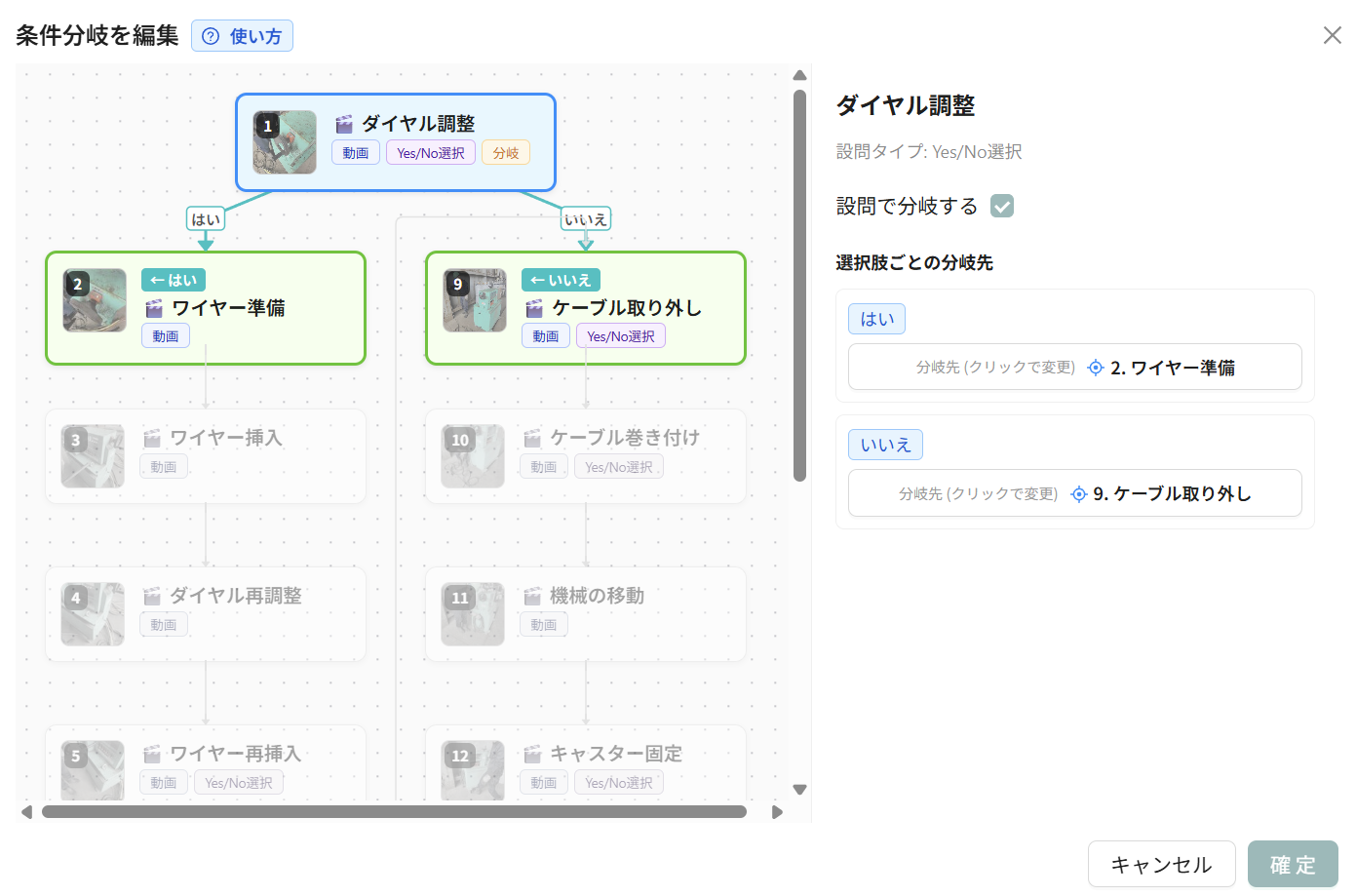
- You can switch which step displays next based on a question answer. Branch destinations are "next step," "complete (END)," or "any step."
- Question types that can be judged are yes/no, choice, multiple choice, text entry, and number entry—five types. You can also jump from a step without a question to a specific step on a flowchart.
- Branching edits on a flowchart where you see the whole picture; click a branch origin step and branch destinations color-code. The branch settings screen is PC-only.
As a constraint, procedures with branching don't support MP4 output. Conditional branching is a Pro plan or higher feature.
Draft, Approval, and Publish
Procedures are managed through draft, approval workflow, and publish. Unless an approver approves, publish and revisions don't execute, and revision history is preserved. Approval workflow is a Pro plan or higher feature.
- Set up as many company-wide approval workflows and group-specific workflows as you need. You choose when you publish. Teams without groups can use company-wide workflows.
- Approvers are specified by "position." Higher-ranking managers (reporting/1-3 levels up) as seen from the initiator, managers of specific groups like quality assurance or safety, team administrators, named individuals, or qualified holders—five types. Qualifications auto-drop from candidates when they expire.
- Per step, distinguish approval from review and set pass condition (name one at initiation / any one / all). When you pair revision reasons to approval workflows, selecting a reason sets the workflow.
- The approvers and content at the time approval starts are fixed, so later workflow edits don't affect running approval. When you send back, the sender picks where to restart, and the initiator can withdraw and go back to draft.
Draft Share (Pre-Publish Review)
Pre-publish drafts can be shared with users and groups you specify, separate from approval workflow. Recipients can view content and leave comments but can't edit, save, or approve. You can share with people who don't have access to the destination folder; notification emails go to recipients when shared and when comments are posted. Users in approval don't need to be specified—they can view drafts anyway.
Plan Conditions (This Section's Features)
| Feature | Available on Plan |
|---|---|
| Per-step questions | Core or higher |
| Per-step inspection and pass/fail record | Core or higher |
| AI Check (double-check submitted photos) | Pro or higher |
| Conditional branching | Pro or higher |
| View record CSV export | Pro or higher |
| Approval workflow | Pro or higher |
| Draft share and comments | All plans including Free |
Cross-search and AI search
The more procedures you have, the harder it is to find what you need—and procedures that aren't found don't get used. Dive provides two ways to search: full-text search and AI search. Both are available in all plans, including Free.
Full-text search covers:
- Procedure titles and descriptions
- Procedure content—including step titles, text, Tips / Quality warnings / Safety-critical items, and questions
- Text in videos and video captions
- Text objects in AR
- Tags assigned to procedures and folders
How to write your search
- Phrase search ("..."), exclusion (-word), AND/OR are all supported.
- Results are ranked by a weighted score that prioritizes titles.
- It tolerates spelling variations and typos, so searching for one variation finds the other.
- You can filter by tags (multiple selection, OR logic).
AI search (conversational)
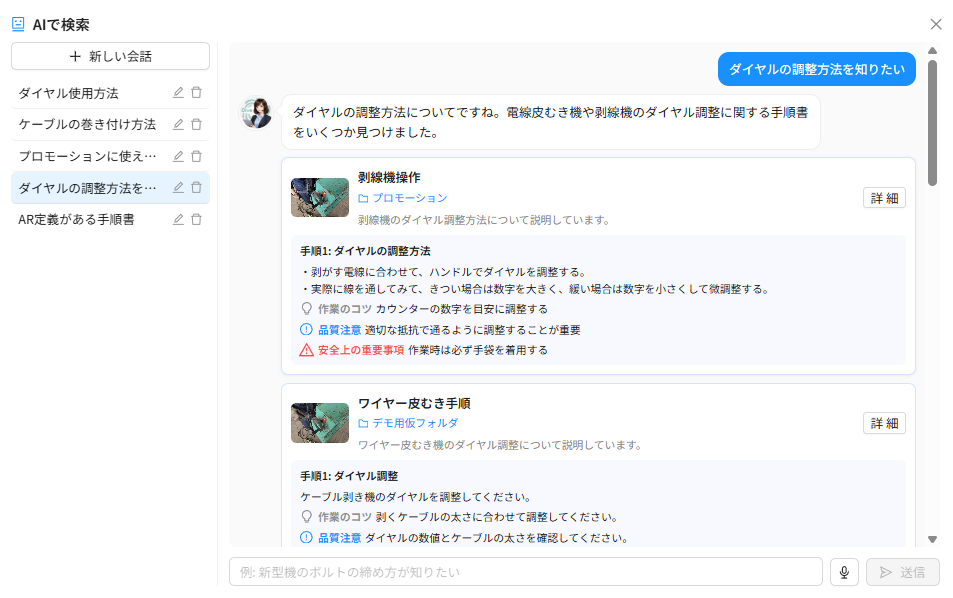
- Ask in plain language what you're trying to do or what problem you're facing, and AI finds the relevant procedures across all your work instructions.
- AI shows you which procedures it found and which step to start from.
- If AI needs more details, it asks follow-up questions. You can have a back-and-forth conversation, and your chat history is saved.
- You can speak your question using the mic icon in the search box—handy when both your hands are busy.
AI only recommends procedures that you have access to.
Offline use
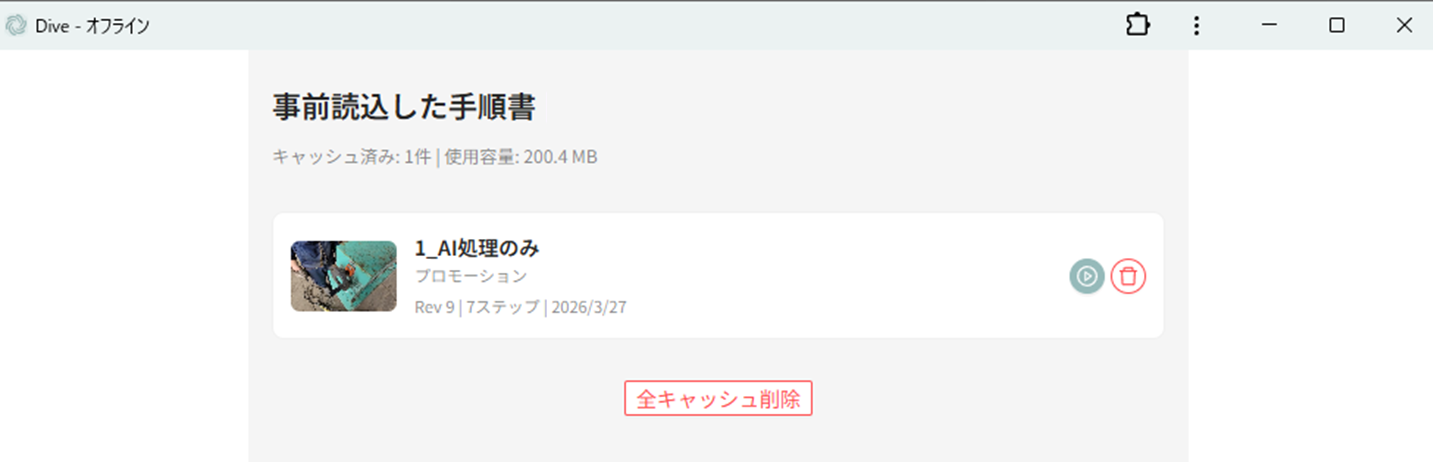
The pre-load feature lets you view procedures offline, just as you would online, even without an internet connection. Translation works offline too.
What's stored on your device
- The procedure, videos, images, translations, and speech all get stored together.
- If you select a translation language during pre-load, that language's translation and speech are saved too. Otherwise, only the original is saved.
- Work records made offline (like answers to questions) are held on your device and automatically sent when you reconnect.
Browser vs. app
- Offline playback works in web browsers too. While offline, pre-loaded procedures appear on a dedicated page (https://app.divedx.com/offline). It works on PCs and Windows tablets.
- The smartphone app is different—videos automatically download during normal viewing and build up in app storage. We recommend the app for sites with poor connectivity.
Multi-resolution and optimized delivery for low-bandwidth environments are available in all plans, including Free.
Limits
In Enterprise plans, the "Device cache settings" option lets you disable offline storage entirely. When that's enabled, offline playback and pre-loading don't work—network is always required.
QR codes and printing / export
You can issue QR codes and print them in bulk for posting around your site or on equipment.
Issuing QR codes
- You can issue QR codes at the procedure level or folder level. Scanning a folder's QR opens the list of procedures in that folder.
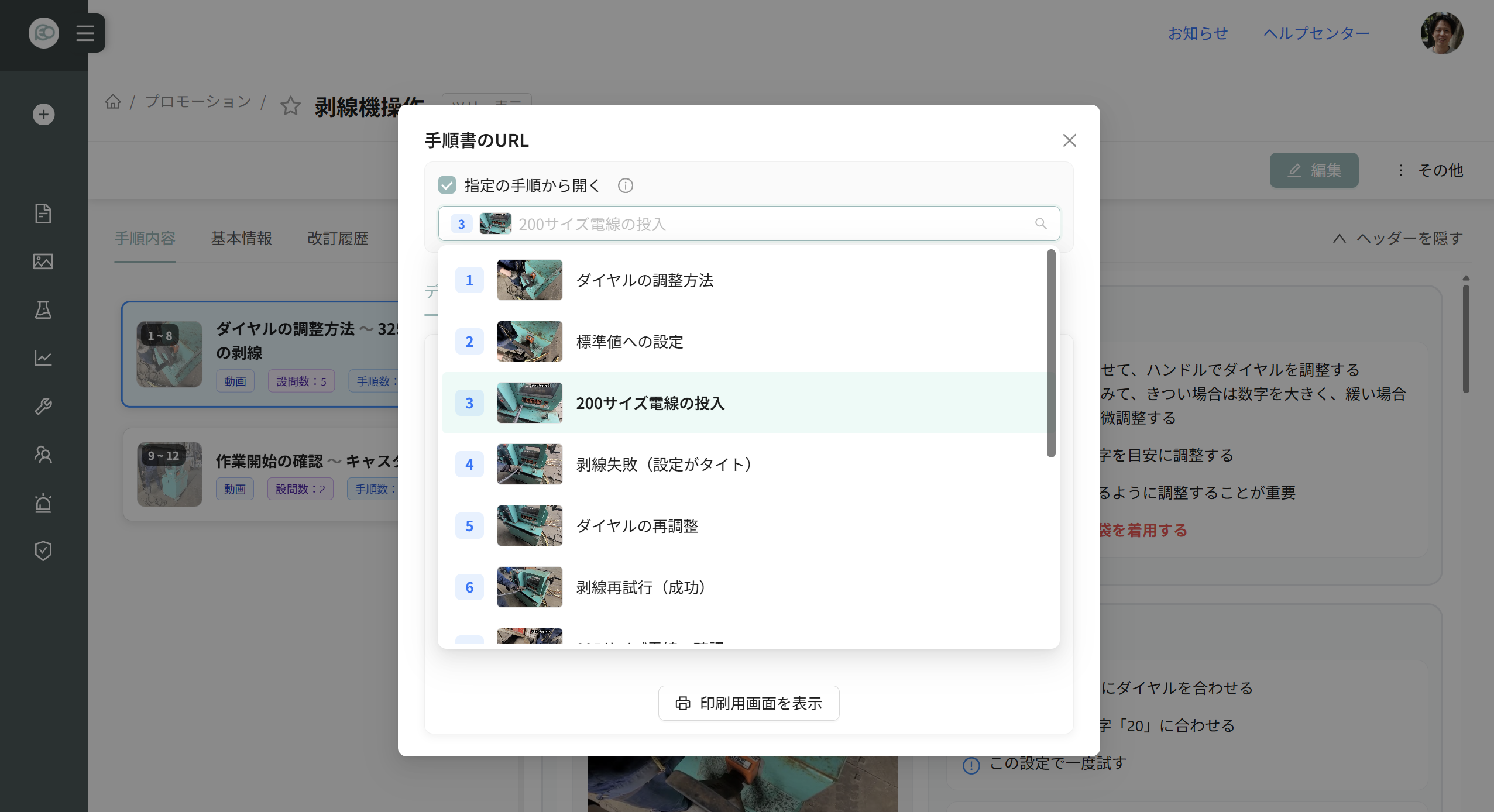
- Turn on "Open from the specified step" in the share modal to issue a URL and QR that start at a specific step instead of the beginning. You can also set this for time-limited share links.
- You can issue QR codes with expiration dates; after expiration, they can't be viewed.
- Turn on "Open with a specified language" to set both the screen display language (29 languages) and the procedure's translation language. This applies to the URL, QR code, and print view. Distribute QR codes in your overseas sites' or migrant staff's languages—they open in that language from the start. Viewers can still change the language after opening, and their usual settings aren't affected.
Bulk print QR codes
- Select multiple procedures and subfolders in a folder and print their QR codes together on A4 sheets.
- Choose from 1, 4, 9, or 24 QR codes per A4 sheet.
- You can turn each field on or off (name is ON by default; description, step count, and URL are OFF by default; thumbnail). QR size auto-adjusts to the layout and fields you choose.
- For folders, "Folder" appears instead of step count, and the cell has a solid border to stand out.
Export to paper and files
- Export formats are PDF, Excel, Word, PowerPoint, or video (MP4).
- PDF and Word use the same layout. Page 1 starts with an overview (description on the left, cover image on the right). Right below that is a list of steps (one per row with thumbnail, work step, and safety/warning notes in 3 columns). Each page shows document name, Rev, and page number at the top; revision history is on the last page.
- For PDF, Excel, or Word, choose what to include: thumbnails, step titles, step details, tips / quality warnings / safety-critical items, questions, captions, revision history.
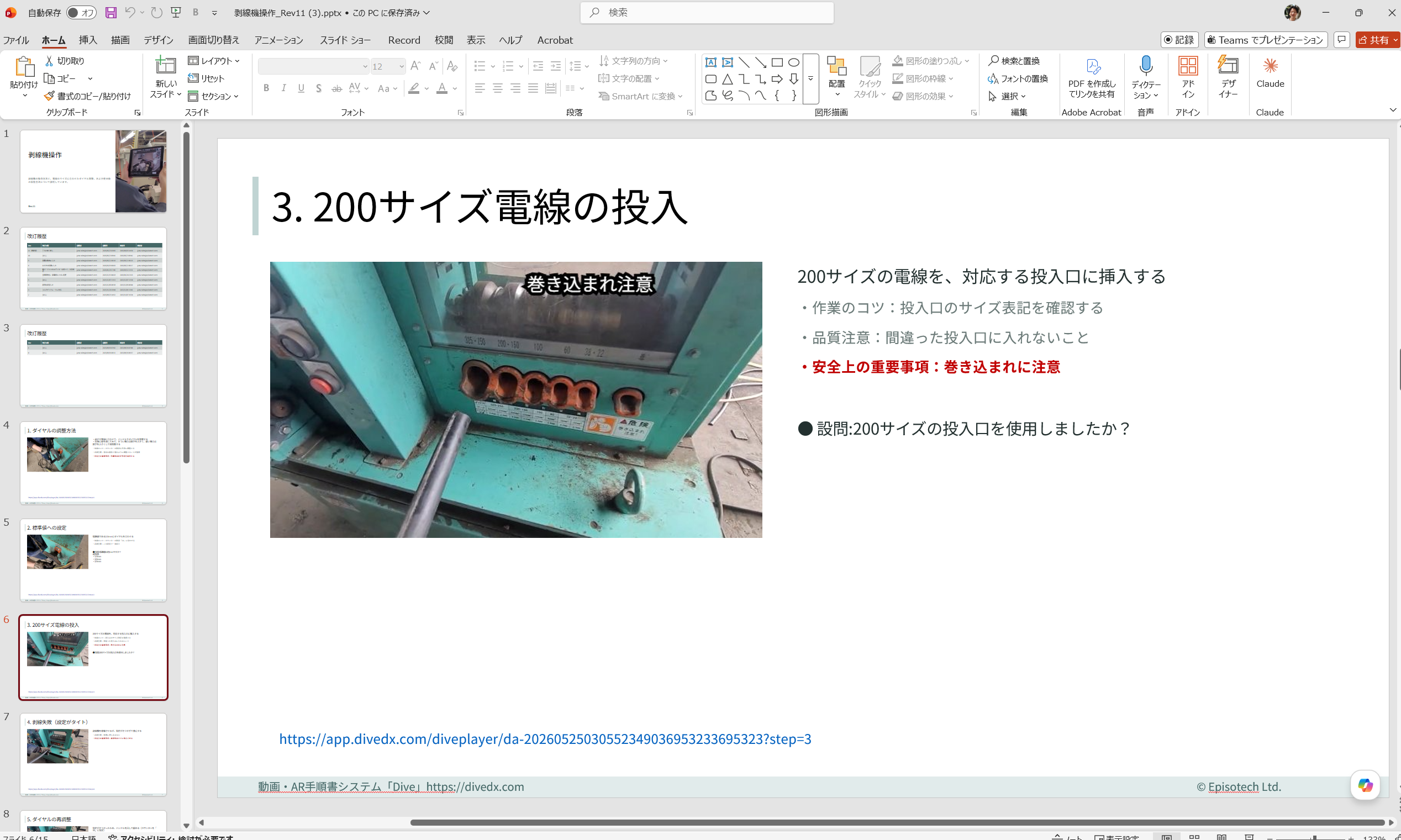
- When exporting PDF, Excel, Word, or PowerPoint, enable "Add a jump URL to each step" (default ON) to embed links on each page/row/slide that open that step directly. Even on printed paper, you can jump back to the video.
- PowerPoint export has one step per slide, plus a cover slide (procedure name, overview, Rev number) and a revision history slide (Rev, revision, originator, origination date, approval date, approver).
- MP4 export is at up to 30 fps and 720p resolution, showing the entire procedure as a video that looks like the Dive screen.
- Excel can export: procedures, lists of procedures in folders, skill maps, an individual user's procedure viewing history, and member/group lists.
Export to your own format
- Register your company's work standard file (Excel .xlsx/.xlsm, Word .docx/.docm, PowerPoint .pptx/.pptm). That format then appears in the Export menu alongside built-in formats, and you can export to it while keeping all the formatting, grid lines, column widths, logos, print settings, formulas, and macros.
- You insert placeholder tags in your template file for the content you want to fill in. The tag syntax is the same across all three formats. The setup screen shows a list of available tags and sample templates for Excel, Word, and PowerPoint, so you can add tags to your existing standard-work files without rebuilding them.
- You can fill in: title, description, revision number, cover image, step numbers, headings, work content, tips, quality warnings, safety-critical items, questions, captions, URLs to open each step, step images, QR codes, and revision history (Rev number, revision, originator, date, approver).
- The template structure differs by format. In Word, you set one frame and it repeats for each step. In PowerPoint, slides or table rows expand. In Excel, rows don't move—you set up frames for the number of steps you expect, and if you exceed that, the export warns you instead of creating extra rows (to keep formulas and macros working).
- Team Admin or higher can add or delete templates.
Plan requirements (this section)
| Feature | Available in |
|---|---|
| QR code issue, external share, MP4 export | Lite and above (not Free) |
| PDF export, Excel export, Word export | Core and above |
| PowerPoint export, procedure list export | Pro and above |
| Export to custom format | Enterprise |
Wishlist (Idea board)
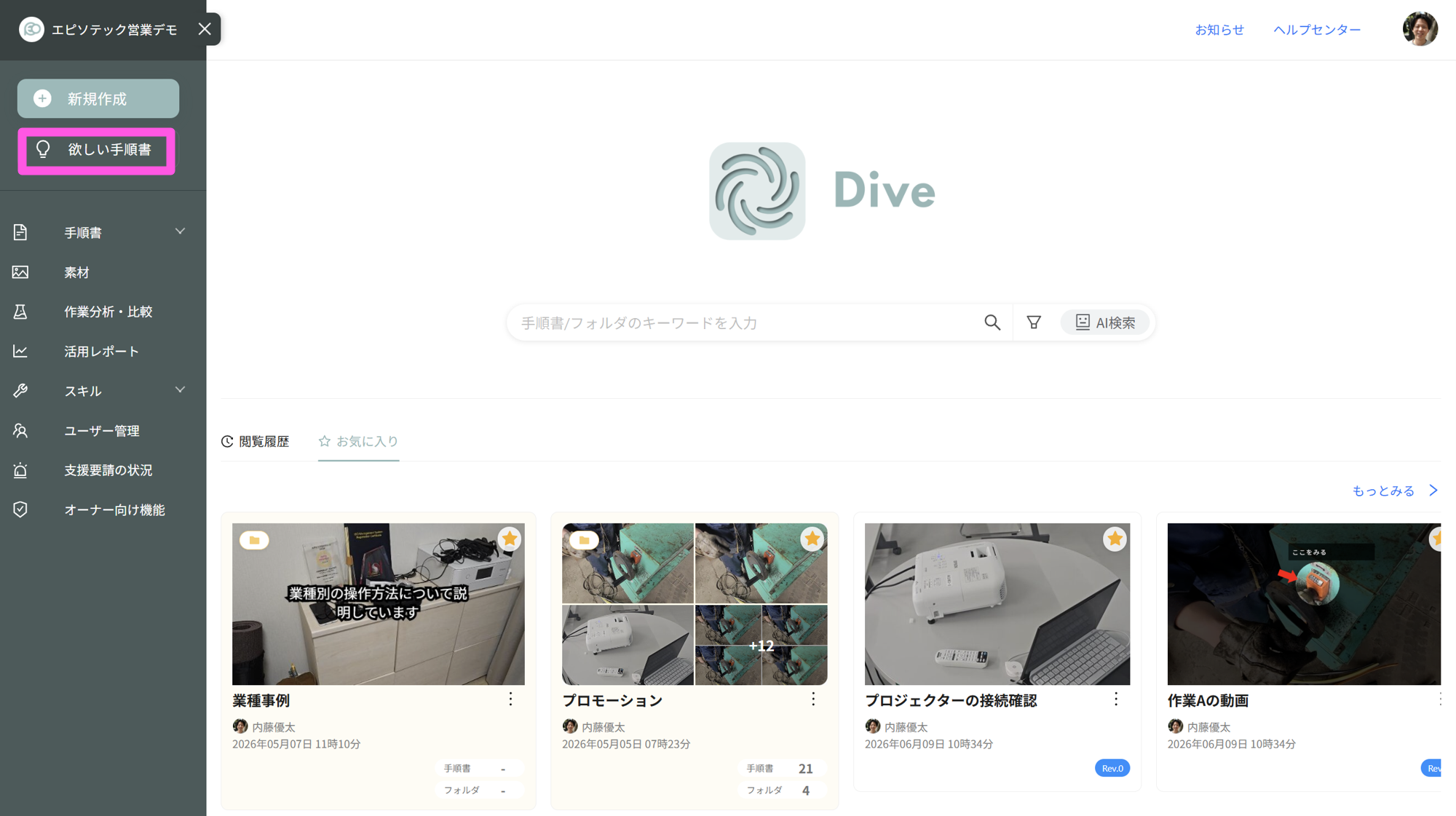
The Wishlist is a board where anyone—viewers included—can post ideas for procedures they'd like to see. People can vote (+1) on ideas they also need, and vote count becomes the creation priority. Each person votes once per idea. Available in all plans.
The same board looks different depending on your role. For viewers, it's a "Wishlist" of procedures they want. For creators, it's an "Idea board" for what to make next.
From post to completion
- Ideas move through three statuses: Wanted, In Progress, Completed.
- When marked Completed, the procedure is linked to the idea, and the poster and everyone who voted gets a notification badge and email. The poster sees "Responded to your request."
- Each idea has a comment thread. Replies notify the poster and all voters by email.
Visibility and promotion to plan
- Wishlist visibility is organized by group. Posters and voters from groups you can't see appear as anonymous avatars.
- Ideas can be promoted from the Wishlist to the Creation Plan, a top-down board for managing work items with assignments, deadlines, and progress. Completion notification goes to the original poster and voters.
Posting to the Wishlist is available in all plans, but managing the Creation Plan requires Pro or higher.
Education (Courses)
Dive separates "education" and "development" into two features. Education (Courses) bundles procedures you want people to complete and assigns them to groups or individuals. Just posting procedures leads to "view and move on," but courses let you manage sequence, quizzes, deadlines, and progress in one place. Development (Skill Map) evaluates and records capacity—see the next section.
What you can do
- Bundle multiple procedures into one course and assign to groups or individuals.
- AI can generate course names and descriptions; add procedures manually or via AI suggestions.
- Set sequential access so people must complete one procedure before moving to the next.
- Set strict completion: if someone answers a question wrong, they don't pass.
- Add a quiz. Questions can be written manually or generated by AI from procedure content. Set a passing score (default 80%).
- Set enrollment deadlines. Automatic reminder emails go to enrollees 3 days before, 1 day before, and after the deadline (checked daily at 8:00 AM Japan time).
- See completion status in a grid of participants vs. course procedures. Colors: green (complete), red (wrong answer), yellow (incomplete), gray (unread).
- Course analytics show number of attempts, pass rate, average score, and retry count, plus per-question pass rates and answer distributions (so you see where people struggle).
- "Self-sufficiency check" rates whether someone completed a procedure solo: first-try pass / complete with stumbles / dropped mid-way / no questions / not viewed. Click to see where they got stuck.
- View one user across three tabs on their page: Education (course completion), Development (skills and skill map), Activity (usage patterns and viewing history).
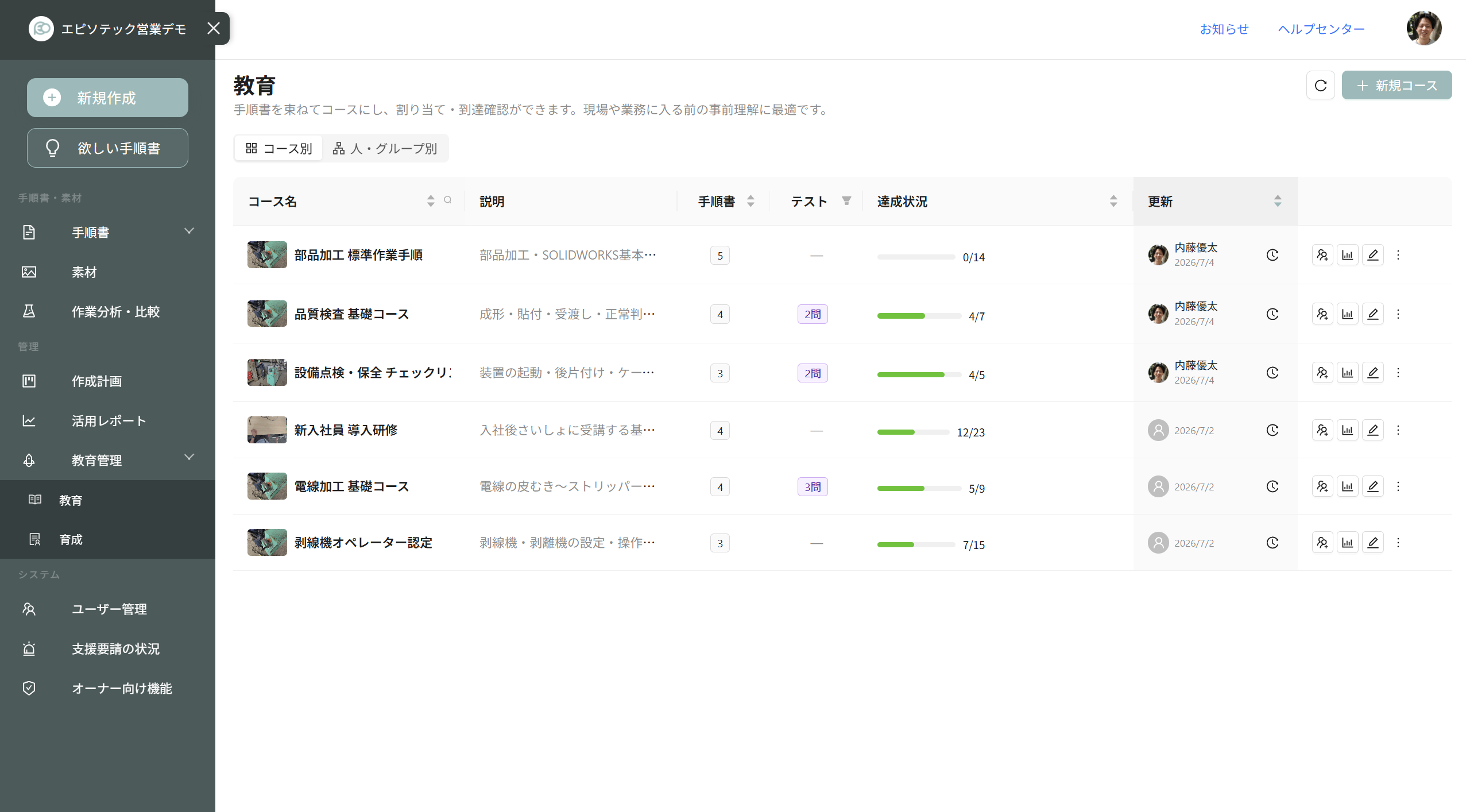
How to use it / Prerequisites
- Course completion means all procedures complete AND quiz passed. The quiz is available after completing all procedures; retakes are allowed.
- Self-sufficiency is based on question answers. Procedures without questions show "No questions" and can't be rated. Per-step questions are a Core+ feature.
- Reminders go to enrollees only—one per timing stage. Already-complete people don't get reminders. Changing a deadline resends reminders based on the new date.
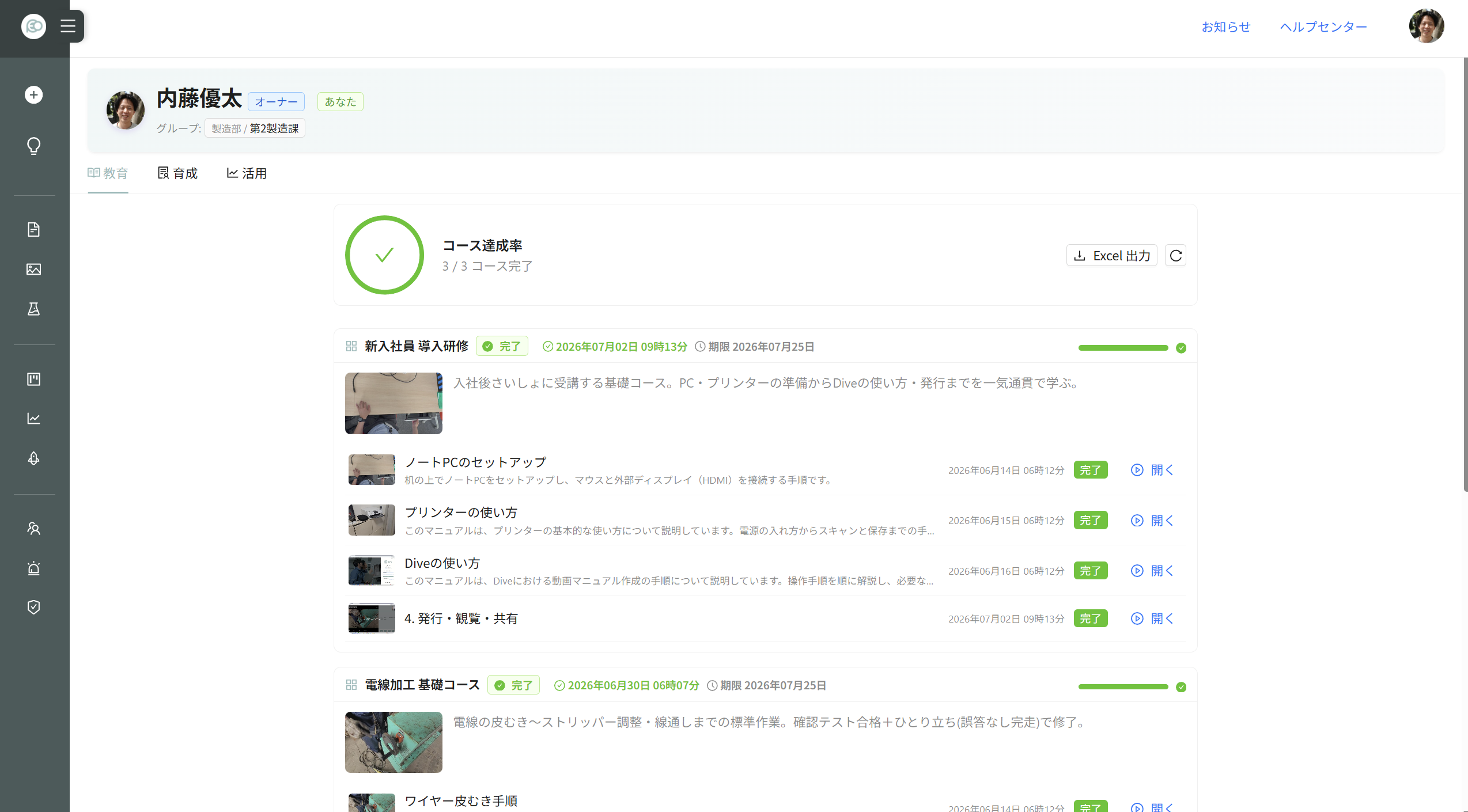
Limits and notes
- Education (Courses) requires Core or higher; not available in Free or Lite.
| Feature | Available in |
|---|---|
| Education management (Courses) | Core / Pro / Enterprise |
| Course assignment and progress tracking | Core / Pro / Enterprise |
| Deadline reminders | Core / Pro / Enterprise |
| Per-step questions | Core / Pro / Enterprise |
Development (Skill Map)
Development (Skill Map) evaluates each person's capacity, plans their growth, and records it. It's designed to align with ISO 9001 section 7.2 "Competence" requirements.
What you can do
- Manage skills across three levels: Category, Subcategory, Skill. 30+ industry templates are available to build from (manufacturing, care, construction, food, logistics, retail, office, etc.).
- Define 4 proficiency levels (Lv1–Lv4) for each skill. In the grid, each cell (Skill × Member) shows a circle divided into quarters, colored by level achieved; Lv4 fills it completely. In-progress levels appear in a separate color.
- Set a target level for each skill.
- Link related procedures to skills. Users' viewing history for those procedures then counts as development records for that skill. AI can suggest bulk links; review and apply them all at once.
- Track self-assessment and official assessment separately. When self-assessment rises, managers see a prompt to review the official level.
- Set staffing targets (number of people needed at each level per skill). A "Gap" column shows shortfall vs. actual.
- Set development duration and coach per level. Coaches see their mentees and track whose skills are rising.
- Save and approve assessments as snapshots to keep history. Export the skill map to Excel for audit records. Import from Excel too—update member ratings in an exported file and write them back.
- Use a Skill Catalog to manage shared skill definitions across your team. Update the catalog and all groups using it automatically sync.
- Per group, order members and toggle visibility. Hidden members disappear from the grid and aren't counted in totals or gap calculations (but their data remains).
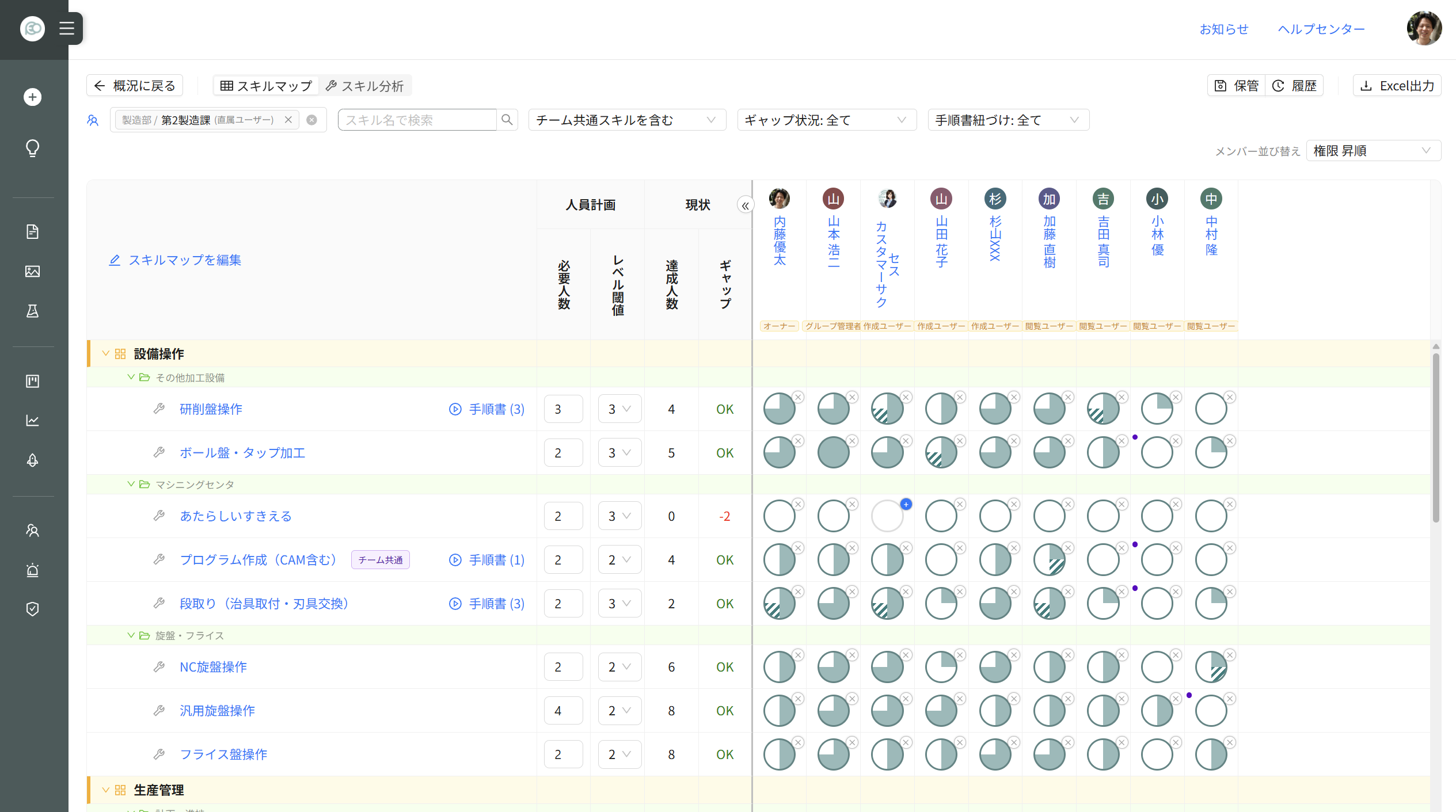
How to use it / Prerequisites
- Start with an industry template, adapt categories and skills to your company, then roll out.
- Viewing history builds development records only if you link procedures to skills. Skills without links rely on manual assessment.
- Self-assessment isn't automatic confirmation. Official assessment is manager-set.
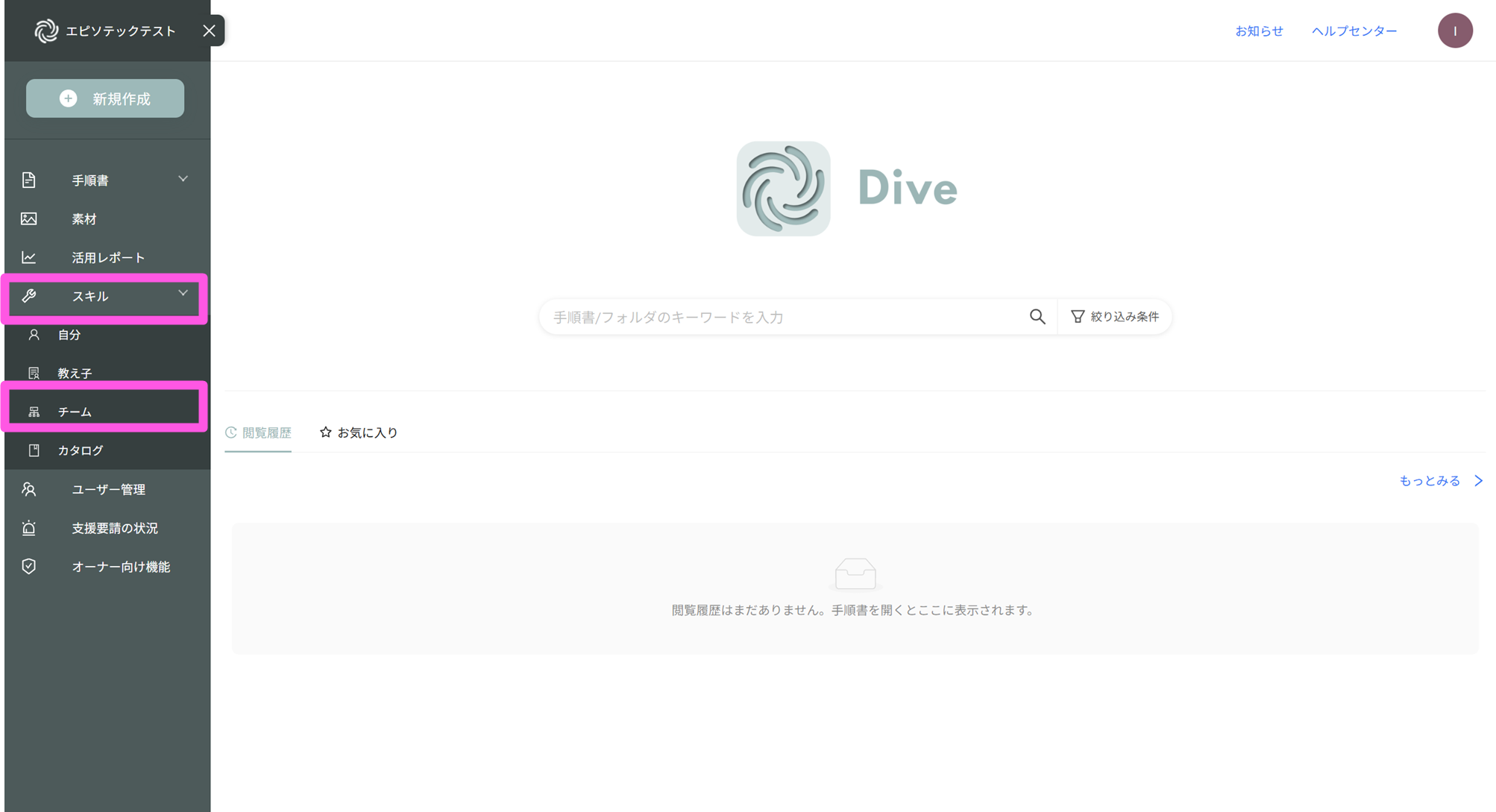
Limits and notes
- Skill Map requires Core or higher; not in Free or Lite.
- Shared Skill Catalog (Team-common skills) is Enterprise only.
- Skill Map Excel export requires Pro or higher.
| Feature | Available in |
|---|---|
| Development management (Skill Map) | Core / Pro / Enterprise |
| Skill map export to Excel | Pro / Enterprise |
| Skill Catalog (Team-common skills) | Enterprise |
AR and Smart Glasses (Supplementary Features to Video Work Instructions)
Dive centers on video work instructions complete in smartphone and PC browsers. AR isn't a replacement but adds supplementary display for spots where video and text alone don't convey "where" or "which direction" to overlay on real objects. Help articles recommend AR for key locations only, not every step.
What's Possible
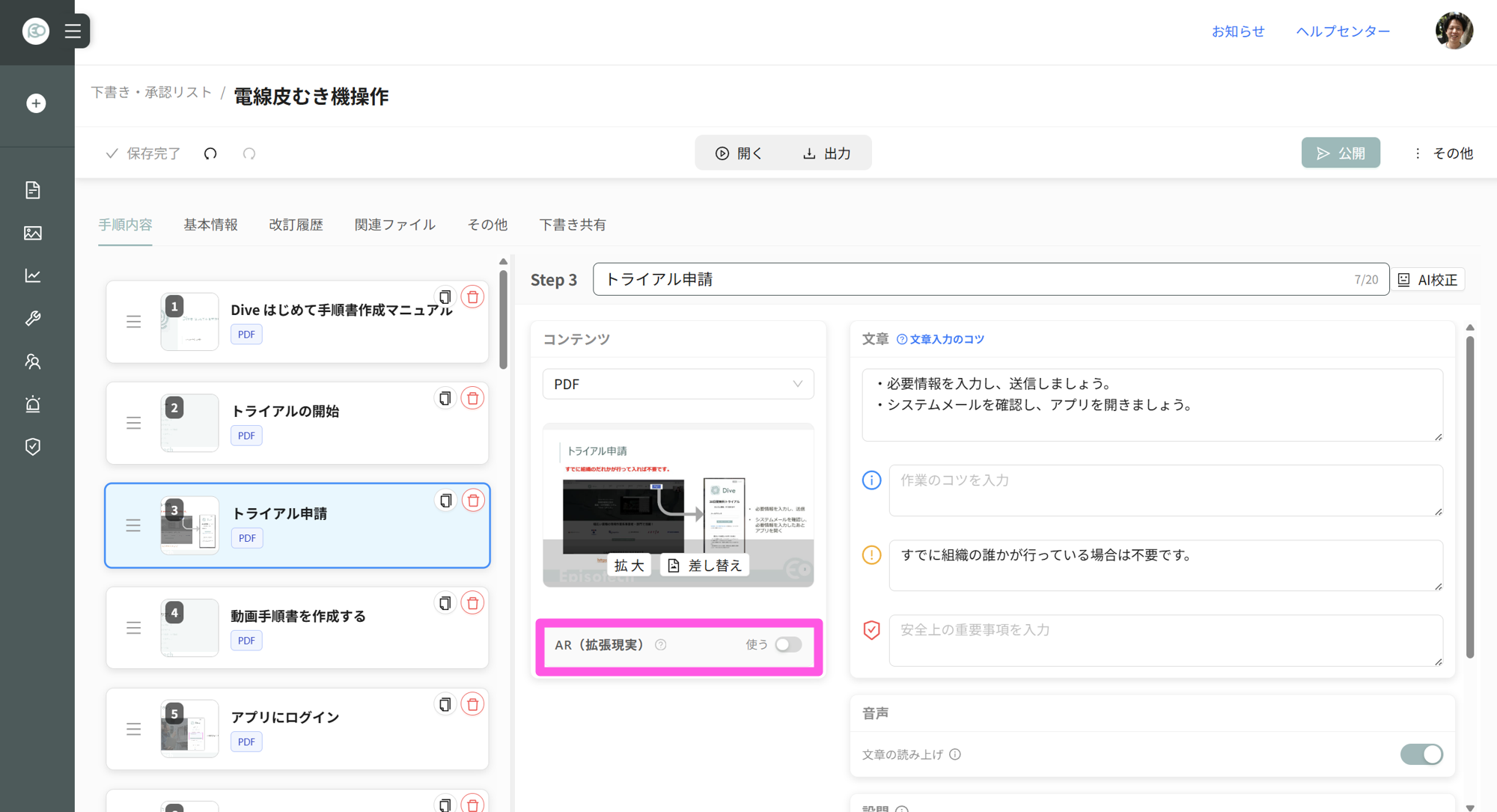
- Overlay AR objects on real objects to show location and direction. Add AR setup to video-step, image-step, or PDF-step procedures.
- Toggle AR per-step on/off. Scan data for positioning sets and clears per-step.
- AR-placed text is included in cross-procedure search targets.
- Use on-site landscapes or equipment images directly for positioning; AR markers to print aren't needed. CG engineers and single smartphone build AR content.
Positioning Methods
| Method | Details |
|---|---|
| Spatial Recognition (VPS: Visual Positioning System) | Position on point cloud or map data from on-site scans. No marker needed. Integrates with Immersal map data. |
| Plane Detection (Markerless) | Detect planes without scan data. Falls back from spatial recognition when unavailable. |
Compatible Devices
- Smartphone/Tablet: ARCore/ARKit-compatible devices (Android Depth API support recommended).
- Smart Glasses: Single-eye type (Vuzix M400 series, RealWear Navigator series) and AR glass type (Xreal Air 2 Ultra, XREAL One/One Pro, MiRZA, dynaEdge XR1). Product site lists 8+ compatible devices.
- XREAL One with official XREAL Eye camera module enables 6DoF, AR work instruction positioning, and remote support with glass-perspective video feed.
Remote Support
- Stream real-time smartphone or smart-glass camera feed while video calling.
- Place AR objects in remote partner's space for clear "there" / "here" instructions.
- Up to 15 per session.
Constraints and Prerequisites
- AR object placement and editing happen in the AR-compatible smartphone app. Browser alone can't complete AR editing.
- AR work instruction creation, smart-glass app use, and point-cloud positioning require Pro or above. Immersal VPS integration and remote support are Enterprise only.
- Lite allows viewing already-created AR procedures but can't edit AR.
Operations, Permissions, Reports, and Outputs
Permissions and Groups
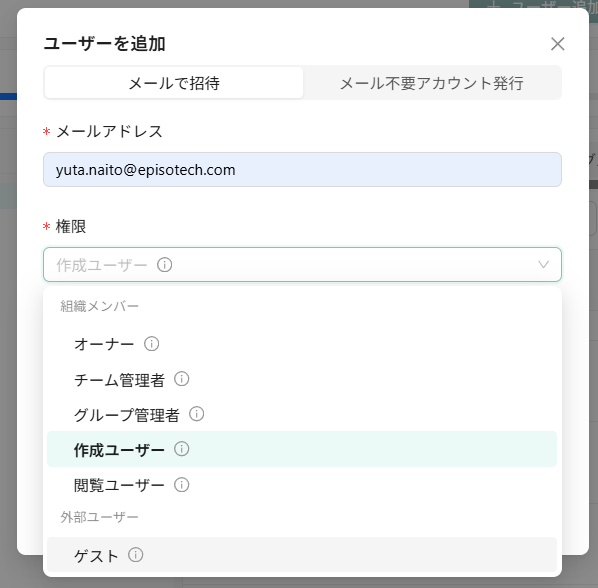
- Five permission types: Owner / Team Admin / Group Admin / Creator / Viewer. These five add up to the same total account count.
- Restrict folder access to specified groups per-folder. Owner/Team Admin bypass restrictions with privilege access to all folders.
- For factory floor staff without email, issue "Email-free account" login-ID style (all plans).
| Plan | Group Count | Depth |
|---|---|---|
| Free / Lite | No groups | — |
| Core | Up to 5 groups | Up to 1 level |
| Pro | Unlimited | Up to 1 level |
| Enterprise | Unlimited | Unlimited |
On the pricing page, group management and folder access restriction are Core plan and above.
Approval Workflow and Updates
- Procedures flow: draft → approval workflow → release. Release/update don't happen without approver sign-off. Revision history retained.
- Multiple company-wide and group-specific workflows can be set per use case; group-free teams still use company-wide. Set from user management; company-wide is Owner/Team Admin; group-specific is group admin+.
- Approvers specified by "position": higher up (department-relative / 1-3 levels above) managers, specific-group managers, team-internal managers, individual name, or credential holders (auto-excluded on expiry).
- Per-step: approval vs. review distinction, pass condition (nominate-one-at-draft / any-one / all), revision-reason to workflow tie-in (auto-set from reason). Running requests lock approver and content; later workflow changes don't affect in-flight requests.
- Rejection specifies re-entry by rejecter; initiator can withdraw to return to draft.
- Owner sets: allow no-approval publish, build workflow at publish time, initiator-as-approver, credential check at approval, require revision reason.
- From part/model name, materials, or document reference, find impacted procedures and request revision (creation plan "find what to revise"). Show matches by reference, then by mention in body with step numbers. Bulk-request with owner, deadline, revision reason; complete when target released. Reason auto-sets revision workflow.
- Excel parts table (BOM) and drawing revisions can be used as reference; Teams/SharePoint/OneDrive files also work, bringing latest original. Creation plan is Pro and above.
- Revision history retained, restorable. Approval workflow is Pro and above.
Two External Publishing Methods
| Item | External Share URL | Guest Invite |
|---|---|---|
| Login | Not required | Required |
| Sharing Unit | One procedure each | Folder-unit |
| Account Count | Unused | Separate count (up to 3x account limit; e.g., Pro = 50 accounts / 150 guests) |
| Capability | View | Information-share only (view-only; excluded from training/development/usage reporting) |
| Control | Expiry, password, audit logs | Audit logs, IP restriction, SSO control |
| Plan | Lite and above | Core and above (Free/Lite excluded) |
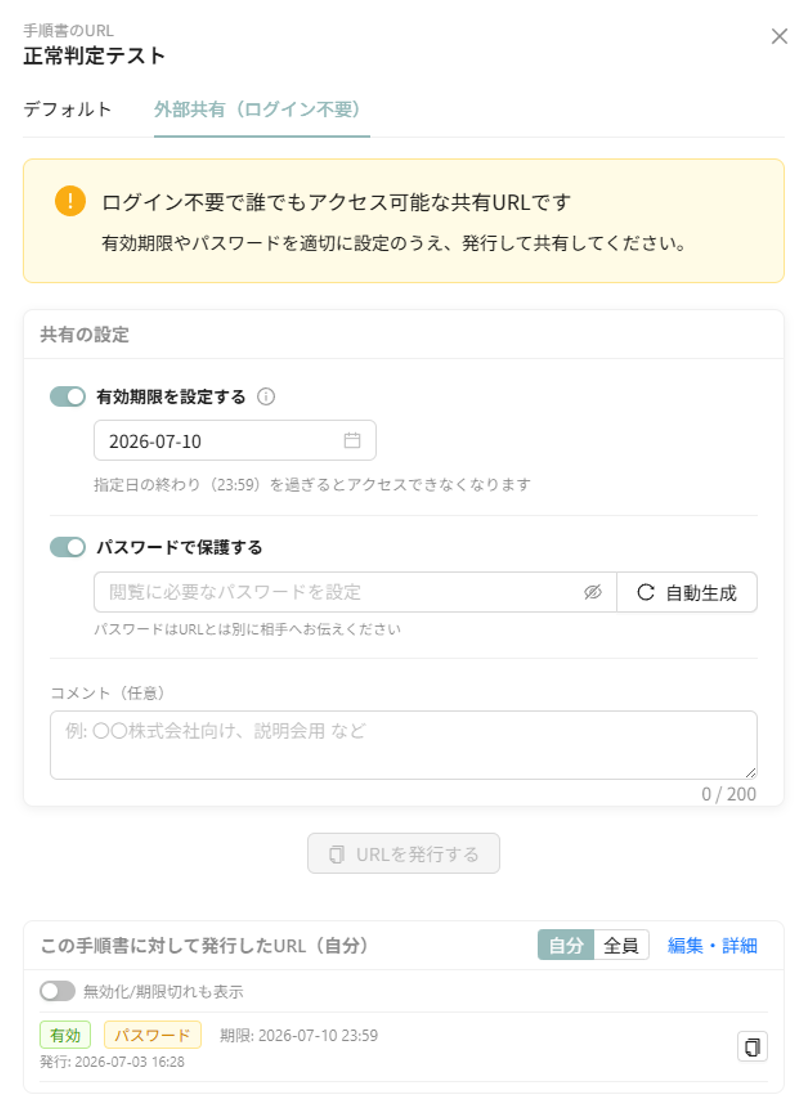
- External share URL requires either deadline or password at issue; no passcode-free perpetual URL (no-deadline needs password protection).
- Issued external share URL can change deadline, rotate password, disable, or reactivate; issue/disable/reactivate/deadline/password changes all log to audit.
- External share URL is default-disabled for security; Owner must enable in team settings.
- Guest invite shows procedure list flat, not folder hierarchy, keeping org structure (folder names, order) private.
- Help recommends guest invite for external sharing for security.
Usage Reports and ROI
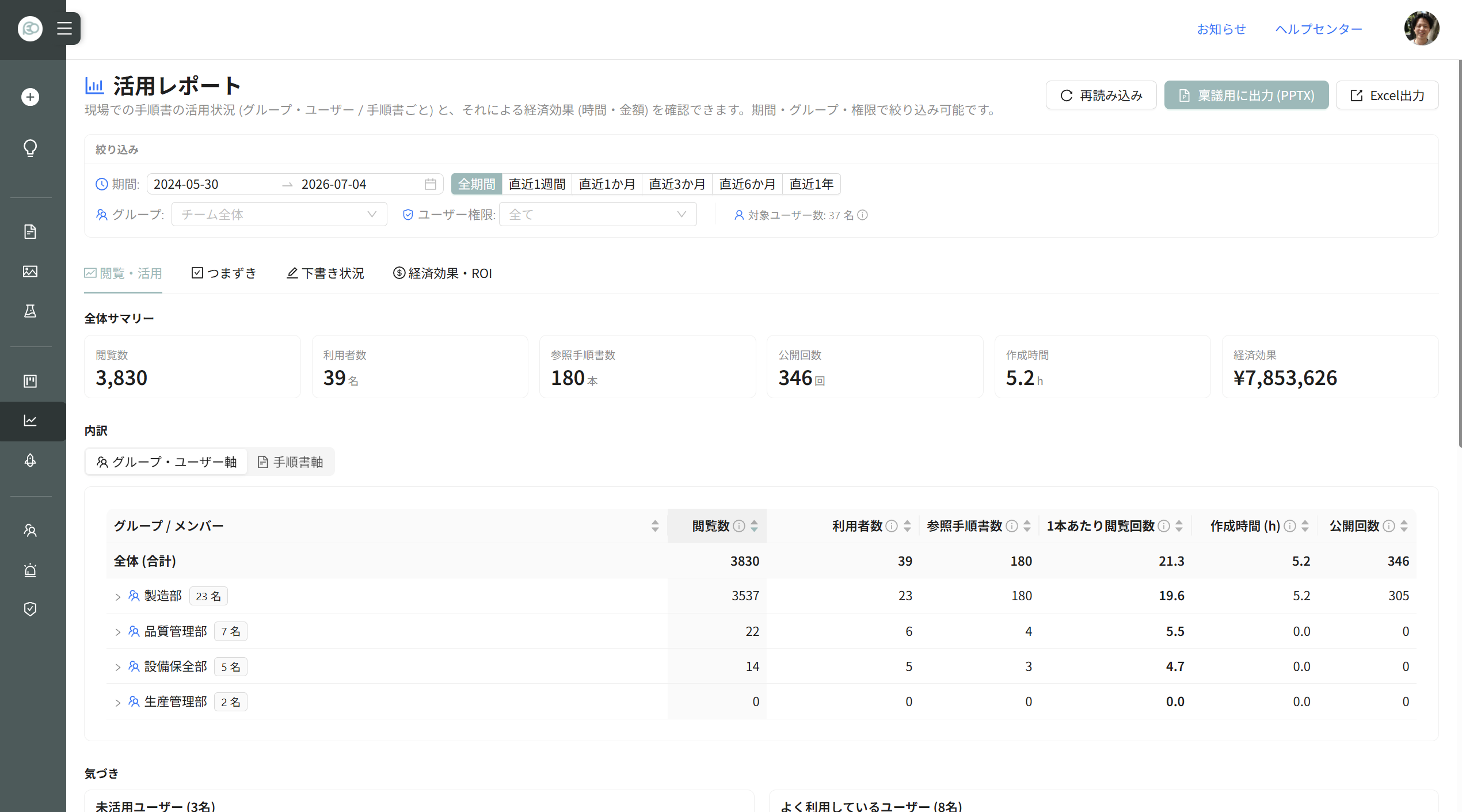
- Four tabs: [View/Usage] [Stumbles] [Draft Status] [Economic Effect/ROI]. Filter by period and group. [Economic Effect/ROI] is Owner/Team Admin only.
- View count, user count, procedure count referenced, views per procedure, creation time, release count, etc. by group / member / procedure. Period: all-time / last week / month / 3 months / 6 months / 1 year.
- Define "full viewing to completion" as "completion" and "question answers all correct on first go to completion" as "independent," surfacing self-completion rate.
- Stumble map: which checkpoint, how many, which choice details.
- Export full report (overview/group-user axis/procedure axis/daily trend/draft status/economic effect/ROI) as one Excel.
- Auto-generate internal proposal material (PowerPoint) from usage report. Pre-contract and trial versions (formula-filled estimates) also available.
- Usage reports are all plans including Free.
Economic effect sums three categories; defaults change on-screen to fit your numbers (default person-hour rate ¥3,000/h):
| Category | Formula |
|---|---|
| A. Training replacement | First views × default 30 min |
| B. Question replacement | Re-views × default 15 min (asking senior avoided) |
| C. Creation efficiency | Releases × (old 90 min − Dive 15 min) |
Output: total saved hours (h) / saved amount (¥) / ROI multiple vs. current plan monthly / payback period (days). ROI calculator using the same formula is public, no login needed.
Work Analysis (Quick Analysis, Compare to Procedure, Time Analysis)
Work analysis splits by objective; same "show video to AI" but starting requirements differ. All three are Pro and above, starting from the same materials library. Results are viewable as self-only / group / team-wide.
- Quick Analysis: Single video, no procedure or standard time needed. AI flags dangerous areas (injury/defect category + severity) and improvement hints with timestamps. Improvement hints appear when that video's AI processing is done. Safety gaps—only flagged if safety is unclear, not from mere uncertainty.
- Compare to Procedure: Match worker video to procedure. Judges per-step do/skip/wrong order/unchecked per step. Basis is procedure or AI-processed Excel/Word/PowerPoint/PDF. Standard time shows per-step duration vs. standard gap. AI output is advisory, no pass/fail. Results remain per-target, visible in personal profile too. Track compared version; post-update shows old-version label.
- Time Analysis: Break video into work elements, auto-derive standard time and rating. ECRS-view improvement proposals. Pre/post improvement numeric comparison. Repeats use dedicated AI extraction, whole-cycle same granularity. Specify analysis scope pre-start (don't cut video). Basis elements save to project, edits don't shift comparison axis. Confirmed time-analysis elements become procedures directly.
- Time analysis pairs exemplar worker video and target worker side-by-side, synced playback. AI-missed elements can hand-measure post-analysis. Results lock at analysis time standard.
- Time-analysis confirmed work elements become steps. One element = one step; element name = step title (body/caution/questions written by AI). Standard times auto-enter per step. Traditional AI-handled splitting or video-export-only options both available.
- Step-wise inspection pass/fail logging is Core and above.
Outputs
- Procedure export: PDF, Excel, Word, PowerPoint, video (MP4) (five types). MP4 outputs by language (translation subtitle/audio per language).
- PDF and Word same format (header per page: name/Rev/page# + 3-column step list + final-page revision history). Custom format use output format (Excel/Word/PowerPoint / Enterprise).
- Excel: procedures, folder lists, skill maps, individual user viewing history, member/group lists.
- CSV: viewing records (checklist) and audit logs. UTF-8 BOM so Excel opens without garbling.
| Output | Available Plans |
|---|---|
| MP4 export | Lite and above |
| PDF export / Excel export / Word export | Core and above |
| PowerPoint export, procedure list export, skill map export, viewing records (checklist CSV) export | Pro and above |
Other Operations
- PC screen recording support.
- Combine video, image, PDF per-step into one procedure.
- AI audio readout, voice command (next/play/pause).
- Multi-level folder management, revision history/restore, approval workflow.
Constraints
- Procedures with conditional branching don't support MP4 export.
- Owner/Team Admin bypass folder access restrictions with privilege (unrestricted).
Security
Third-Party Certification and External Assessment
- Information security standard ISO/IEC 27001:2022 (ISMS) acquired November 2024. Certifier: G-CERTi, cert # GIJP-1469-IC, accreditation by IAS (MSCB-113).
- External security-assessment platform Assured. Answered 92.4 points (top 25% vs. 76.5 average) (at response time).
- Comply with Ministry of Economy, Trade, and Industry "Cloud Service Level Checklist," offering security checklist.

Data Handling
- All transport is HTTPS encrypted. Database and files encrypted; storage region is domestic (Tokyo).
- Video AI doesn't retrain; customer data isn't used for retraining or review. High-confidentiality business procedures can go directly to AI.
- 24/7/365 server monitoring. System operations limit to ops staff; routine data access is nil (customer request and incident response except).
- 99.9% uptime last 12 months.
Authentication and Access Control
- SSO: SAML 2.0 (Okta, Microsoft Entra ID, OneLogin, HENNGE One, etc.) and Microsoft Entra ID (OIDC). Owner configures from admin screen; no custom work needed. SAML: DNS TXT for domain ownership, IdP metadata URL or XML. Metadata URL auto-follows cert updates; near-expiry mail alerts. Enterprise trial also configurable. Optional IdP autofill new users on first login (admin consent in plan account limit). "Disallow logins other than SSO" (Enterprise).
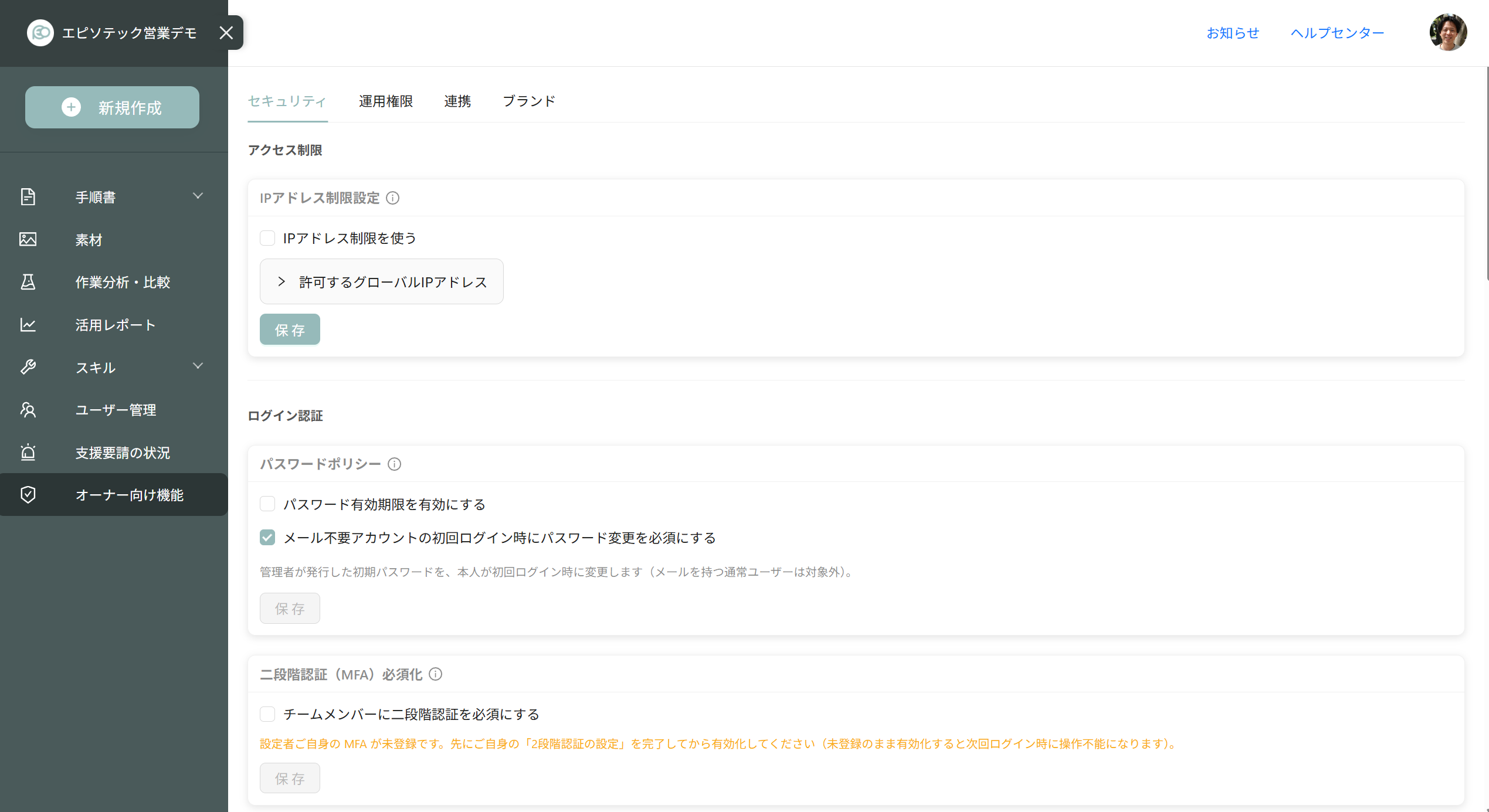
- 2FA: TOTP (Google Authenticator, Microsoft Authenticator, etc.). Team-wide mandatory is Enterprise; exceptions by group/user. SSO users IdP-authenticate, so not mandatory-covered.
- No social login (Google, Facebook, etc.).
- IP restriction: IPv4/IPv6 single, range, CIDR entry. Excel import/export allowed.
- Auto-logout configurable: idle logout (30 min–24 h), re-auth from login (24 h–90 days), both optional. Exception groups/users skip auto-logout. During procedure playback, remote-support call, or upload, no auto-logout.
- See where members are logged in; force logout per user on device loss or departure. Reflection up to 1 h.
Control and Audit
- Audit logs: login (success/fail/MFA/SSO), user add/remove/permission, security settings change, external share URL issue/disable/reactivate/deadline/password changes, CSV download. Owner accesses team access logs (login history, user/group change history, etc.).
- Per-feature permission setting (Enterprise). Thresholds for export/folder export/external share/asset download/attachment download/skill map export/usage report: set minimum role to allow.
- Device cache setting (Enterprise). Disable on-device data mode; offline playback and pre-load off, always needs network.
- External share URL default-disabled; Owner enables in team settings.
- Security settings (IP restriction, SSO, 2FA mandatory, password policy, session, external share forbid, per-feature role threshold, device cache, audit logs) are Owner-only editable.
Plan Security Features
| Feature | Available Plans |
|---|---|
| 2FA, IP restriction, audit logs, session (auto-logout) | All plans including Free |
| External share forbid setting | Lite and above |
| 2FA mandatory, SSO, flexible download restriction (per-feature role threshold), device cache setting | Enterprise only |
Deployment Track Record
Deployed at major listed companies and universities with strict security. IHI Group, Denso, Kaneka, Nippon Steel Group, JAL Group, Unitika, SG Holdings, Actio, Sotetsu Holdings, National Center for Global Health and Medicine, Tokyo University of Science, Saga University, etc.